Install from HubSpot Marketplace
This guide walks you through installing the QuickBooks Invoicing integration from the HubSpot App Marketplace.
Prerequisites
- HubSpot account with Super Admin permissions
- Access to your HubSpot account settings
Important: Only Super Admin users can install apps in HubSpot. If you don’t have this permission, contact your HubSpot administrator.
Step 1: Access the HubSpot App Marketplace
- Log into your HubSpot account
- Click the Settings icon (gear icon) in the top navigation bar
- In the left sidebar, navigate to Integrations → App Marketplace
- Alternatively, go directly to ecosystem.hubspot.com/marketplace
Step 2: Search for Structur for Quickbooks
- In the App Marketplace, use the search bar at the top
- Type “Structur for Quickbooks”
- Press Enter or click the search icon
- Look for the Structur for Quickbooks app in the search results
Tip: You can also browse by category under “Accounting & Finance” or “Sales”
Step 3: View App Details
- Click on the Structur for Quickbooks app listing
- Review the app details page which includes:
- App description and features
- Required permissions
- Pricing information (if applicable)
- Screenshots and videos
- Reviews and ratings
- Support contact information
- Click the Install app button
Step 4: Select Your HubSpot Account
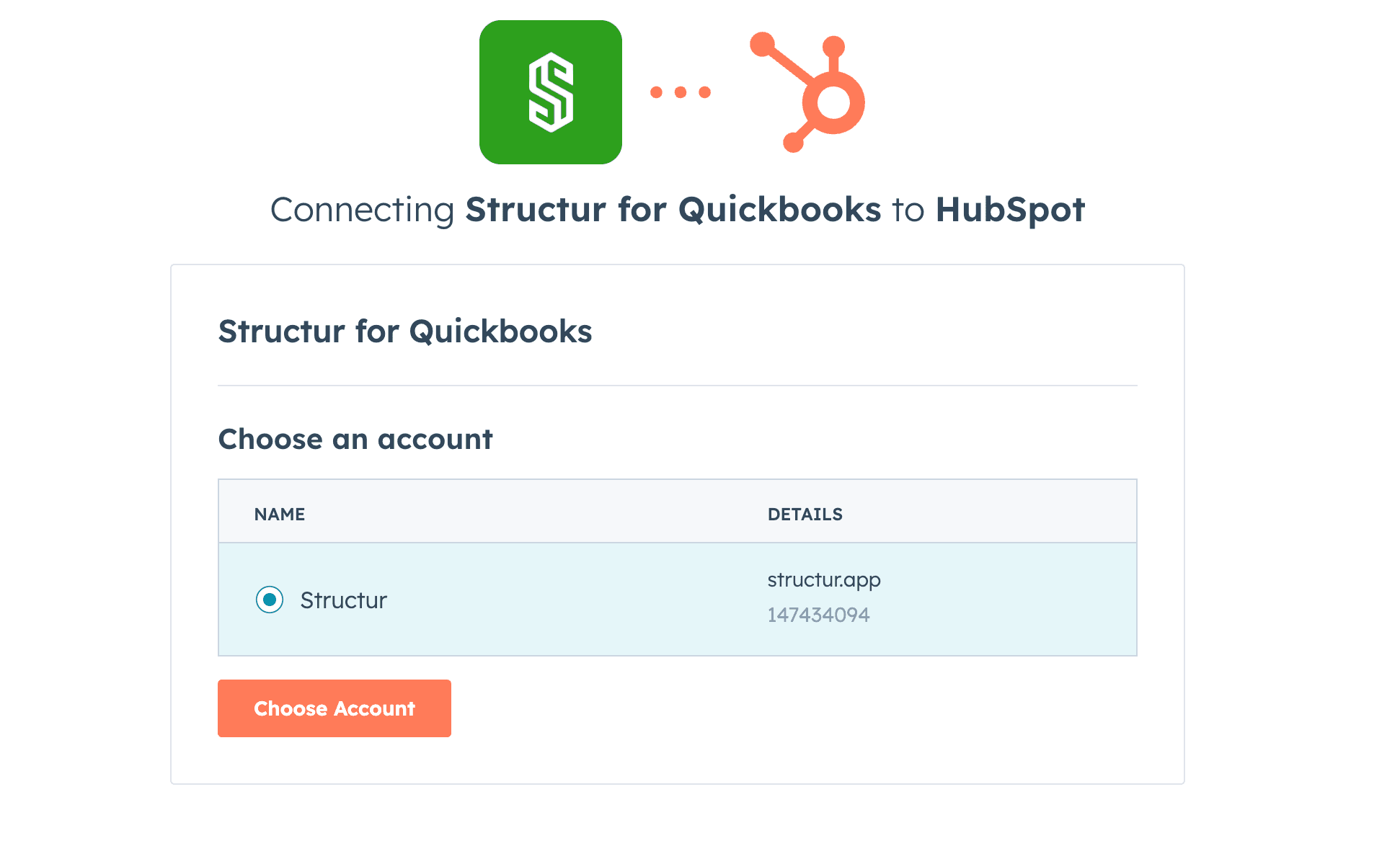
If you have access to multiple HubSpot accounts:
- Select the account where you want to install the integration
- Click Choose account to proceed
If you only have one account, this step is skipped automatically.
Step 5: Review Permissions & Install
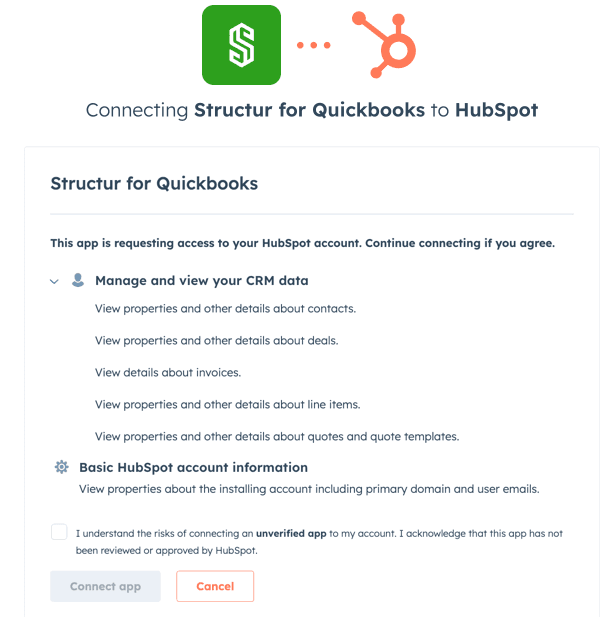
-
You’ll be redirected to a permissions approval screen
-
Review the requested permissions carefully
Note: Make sure you understand what permissions the app is requesting before proceeding. See OAuth Approval for details on each permission.
-
Click Connect app to proceed
-
Wait for the installation process to complete (usually 10-30 seconds)
-
You’ll see a success message when installation is complete
Step 8: Access the App Settings
After successful installation:
- You’ll be automatically redirected to the app’s settings page
- Alternatively, go to Settings → Integrations → Connected Apps
- Find QuickBooks Invoicing in your connected apps list
- Click Settings to access the configuration page
What Gets Installed
Once installation is complete, the following components are added to your HubSpot account:
CRM Card (Deal Record Tab)
- Appears on all deal records
- Named “QuickBooks Invoices”
- Accessible from the top navigation tabs on any deal
- Displays invoice history and creation interface
Settings Page
- Accessible from Settings → Connected Apps → QuickBooks Invoicing
- Two tabs: Authentication and Defaults
- Used for OAuth configuration and default preferences
Background Services
- Secure API connection to the backend
- Handles OAuth token management
- Processes invoice creation requests
Verify Installation Success
Confirm the app is installed correctly:
- Navigate to any deal record in HubSpot
- Look for the QuickBooks Invoices tab in the record navigation
- The tab should be visible alongside other standard tabs (Overview, Activity, etc.)
- Go to Settings → Integrations → Connected Apps
- QuickBooks Invoicing should appear in the list
Success Indicators:
- ✅ QuickBooks Invoices tab visible on deal records
- ✅ App appears in Connected Apps list
- ✅ Settings page is accessible
- ✅ No error messages displayed
Installation Scope
Important details about installation scope:
- Account-Wide: The app is installed for your entire HubSpot account
- All Users: All users in your account can access the integration
- All Deals: The CRM card appears on all deal records
- Permissions: Only Super Admins can configure OAuth settings
Data and Privacy
Understanding what happens to your data:
- No Data Transfer: Installation does not transfer any data
- No Modifications: No changes are made to existing HubSpot records
- Read-Only Access: The app only reads HubSpot data (doesn’t write)
- Secure Connection: All communication is encrypted via HTTPS
Next Steps
Now that installation is complete:
- Review OAuth Approvals - Understand what permissions you granted
- Verify Installation - Confirm everything is working
- Connect to QuickBooks - Configure OAuth credentials
Troubleshooting
I don’t see the “Install app” button
- Verify you’re logged into HubSpot
- Check that you have Super Admin permissions
- Try refreshing the app listing page
- Make sure the app is published and available
Installation Failed
If installation fails:
- Check your internet connection
- Verify you have Super Admin permissions
- Try a different browser
- Clear browser cache and cookies
- Contact support if the issue persists
App Not Appearing After Installation
- Refresh your browser (Ctrl+Shift+R or Cmd+Shift+R)
- Navigate away and back to a deal record
- Check Settings → Connected Apps for the app
- Wait a few minutes for propagation
- Sign out and sign back into HubSpot
Wrong Account Selected
If you installed to the wrong HubSpot account:
- Uninstall the app from that account
- Sign into the correct account
- Install the app again
- Select the correct account during installation
Need to Uninstall
To uninstall the integration:
- Go to Settings → Integrations → Connected Apps
- Find QuickBooks Invoicing
- Click the three-dot menu
- Select Uninstall or Remove
- Confirm the uninstallation
See our Uninstall Guide for more details.