Create Intuit App
This comprehensive guide walks you through creating a QuickBooks Online app in the Intuit Developer Portal, retrieving your development credentials, and configuring OAuth settings. By the end, you’ll have everything needed to start integrating HubSpot with QuickBooks.
Prerequisites
Before you begin:
- You must have an Intuit Developer account
Step 1: Access the App Dashboard
- Navigate to developer.intuit.com
- In the top-right corner of the page, click My Hub
- Select App dashboard from the dropdown menu
Step 2: Create a New App
- On the My Apps page, click the + button to create a new app
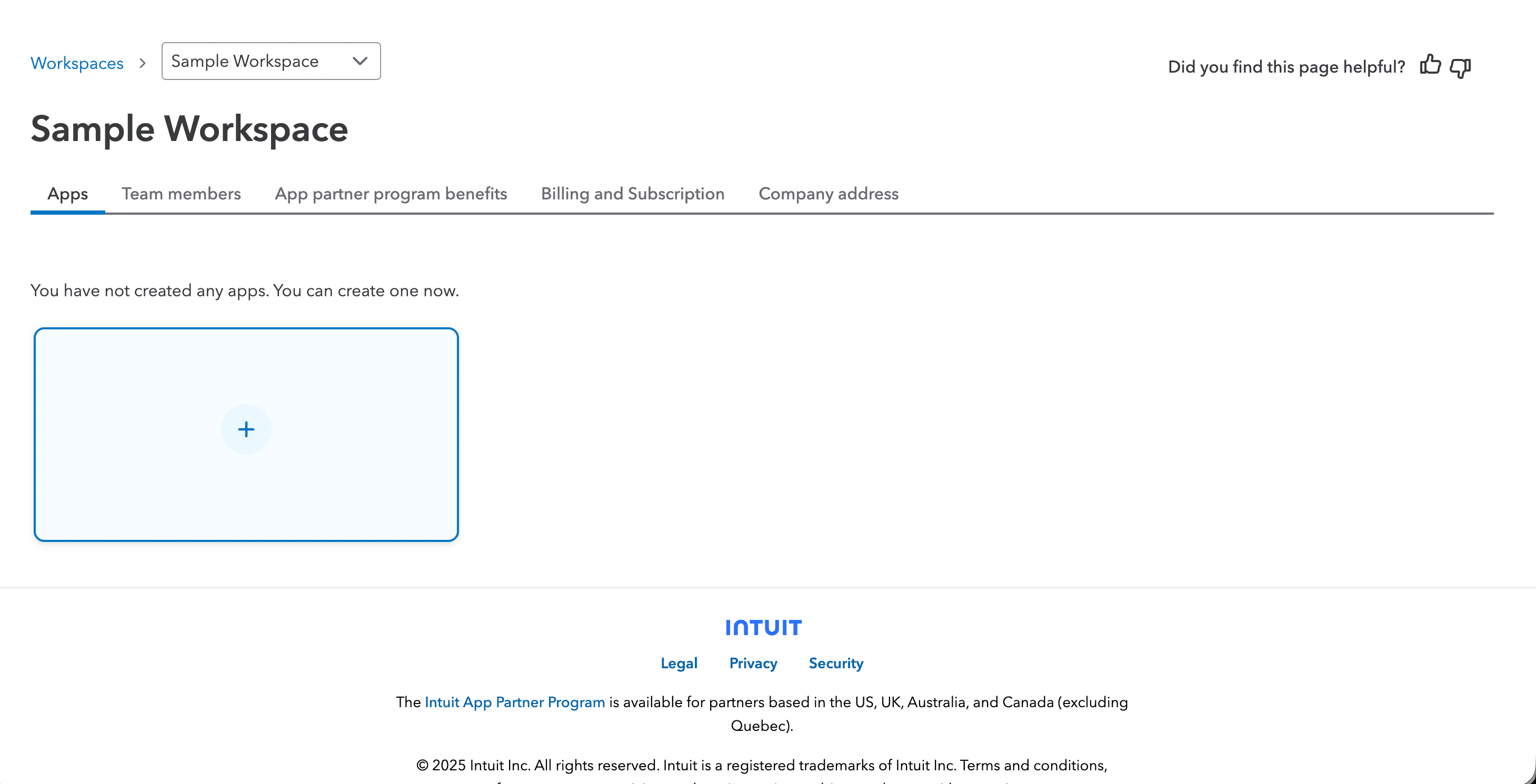
Note: You’re about to create a QuickBooks Online app. Make sure you select “QuickBooks Online and Payments” if prompted (not QuickBooks Desktop). These are different platforms with different APIs.
Step 3: Tell Us About Your App
This page guides you through the initial app configuration. The process has three parts:
3a. Enter Your App Name
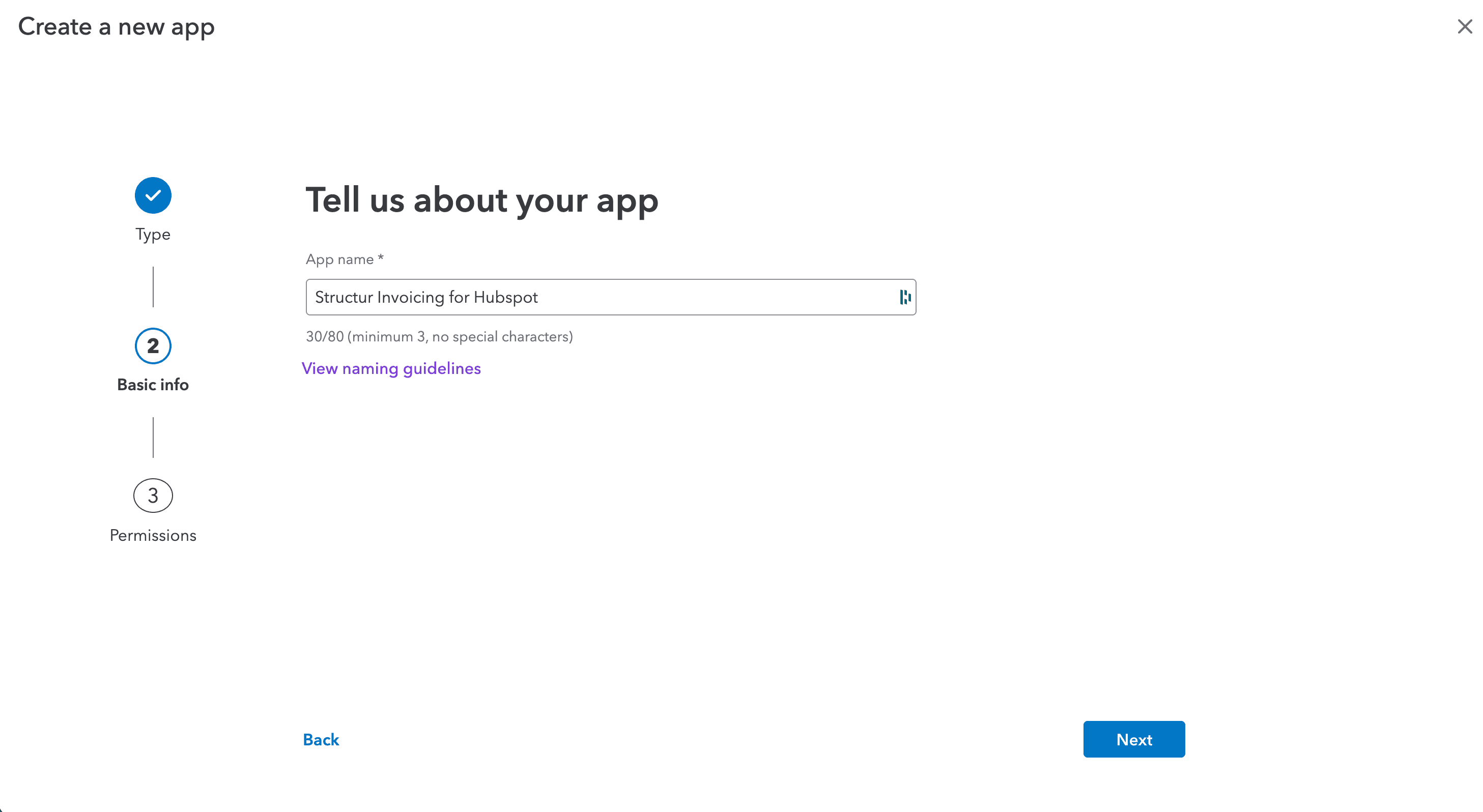
- Enter a name for your app (e.g., “HubSpot Invoice Integration”)
- This name is for your reference and helps identify the app in your dashboard
- Click Next
Tip: Use a descriptive name like “HubSpot-QuickBooks Invoicing” to easily identify this app if you create multiple integrations later.
3b. Add Permissions
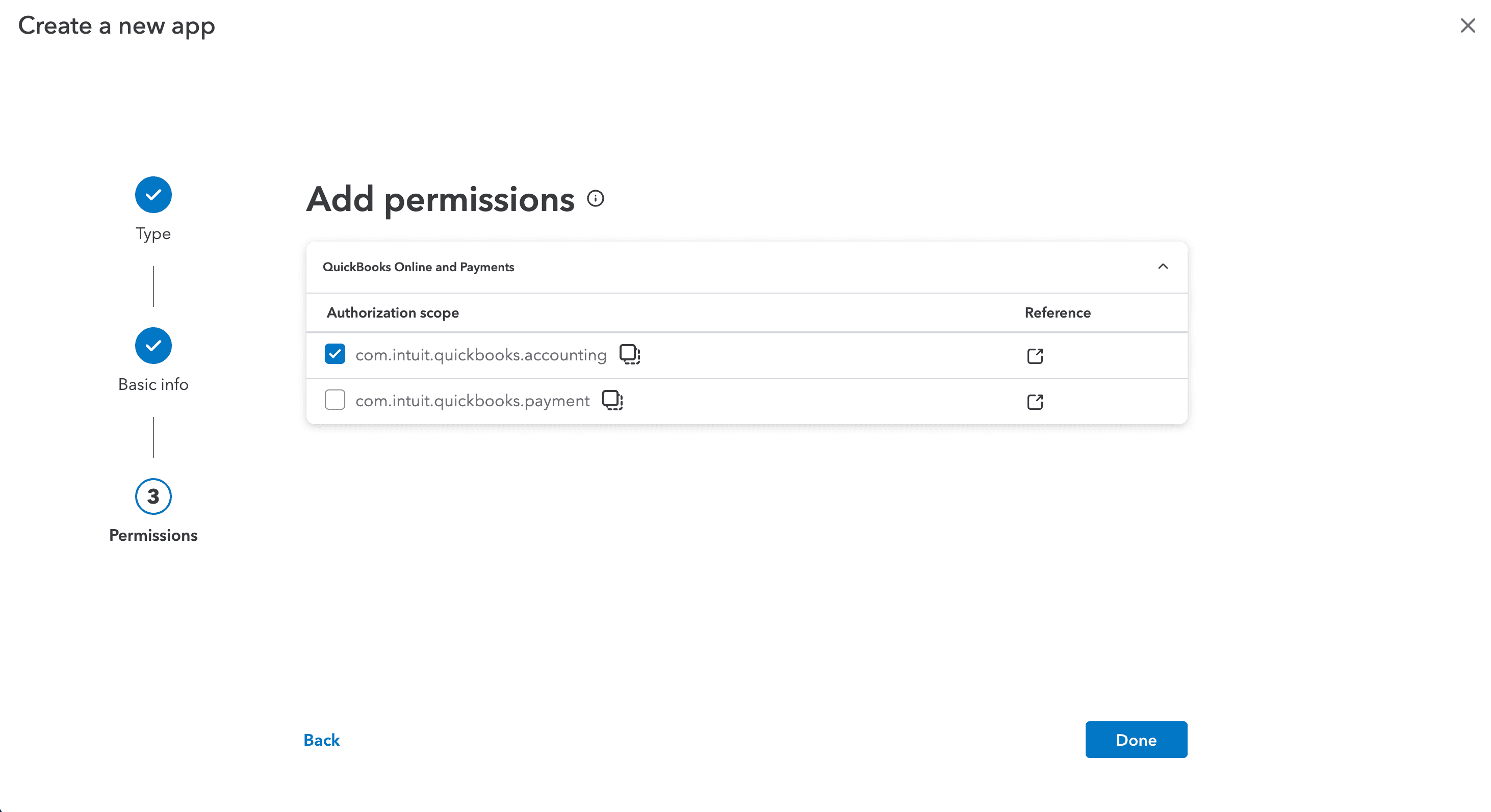
- On the “Add permissions” page, select com.intuit.quickbooks.accounting
- This scope provides access to:
- Invoices (create, read, update)
- Customers (create, read, update)
- Products and Services (read)
- Tax Codes (read)
- Payment information (read)
- Click Done
Important: Only request the scopes your app actually needs. The Accounting scope is sufficient for this integration and provides all necessary invoice and customer management capabilities.
3c. App Ready for Testing
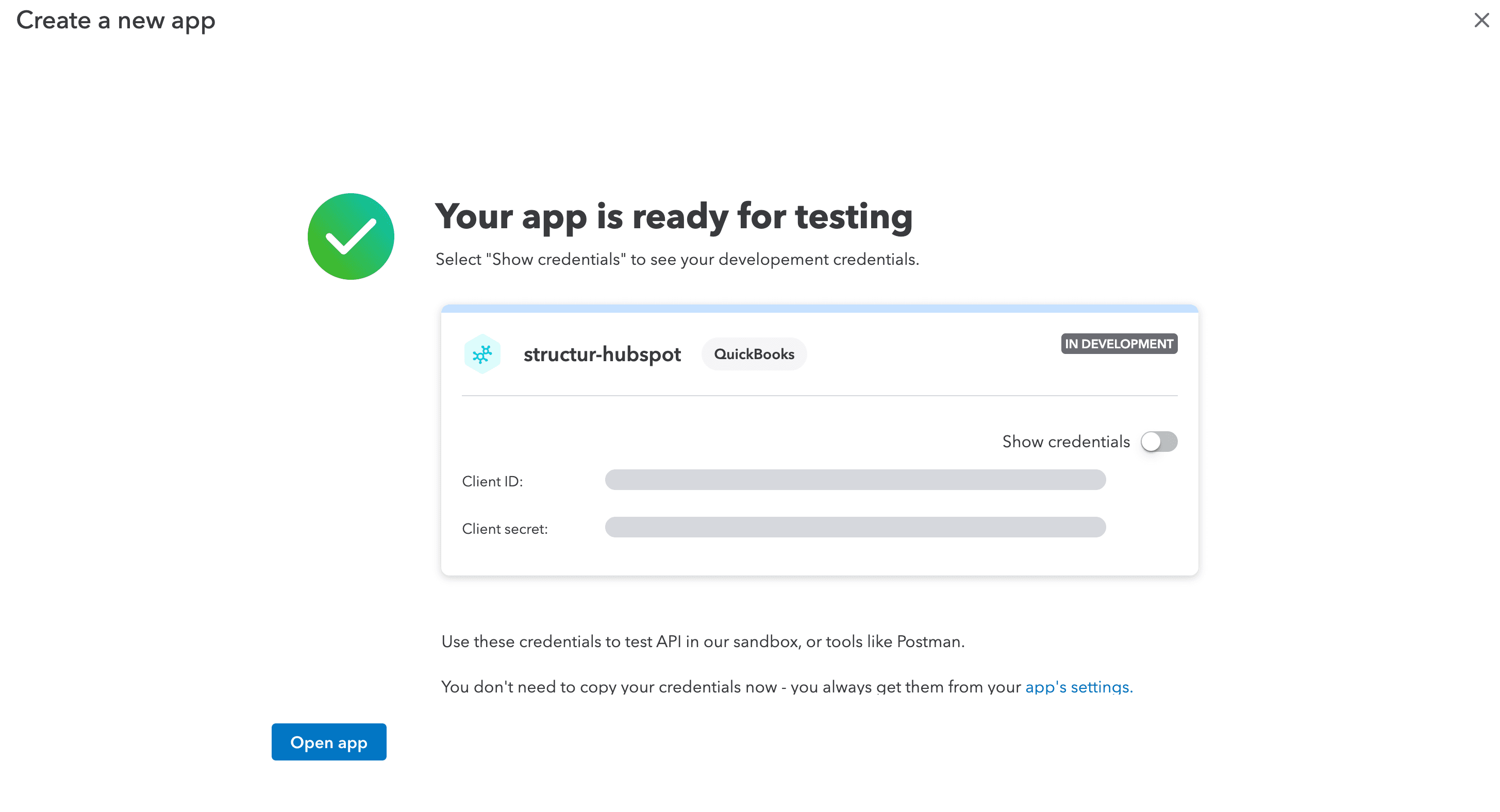
- The system has created your app with IN DEVELOPMENT credentials
What this means: Your app starts in Development mode, allowing you to test with QuickBooks Sandbox companies before going live with production data.
Step 4: Get Your Development Credentials
After creating your app, your development credentials are immediately available!
4a. Navigate to Keys & Credentials
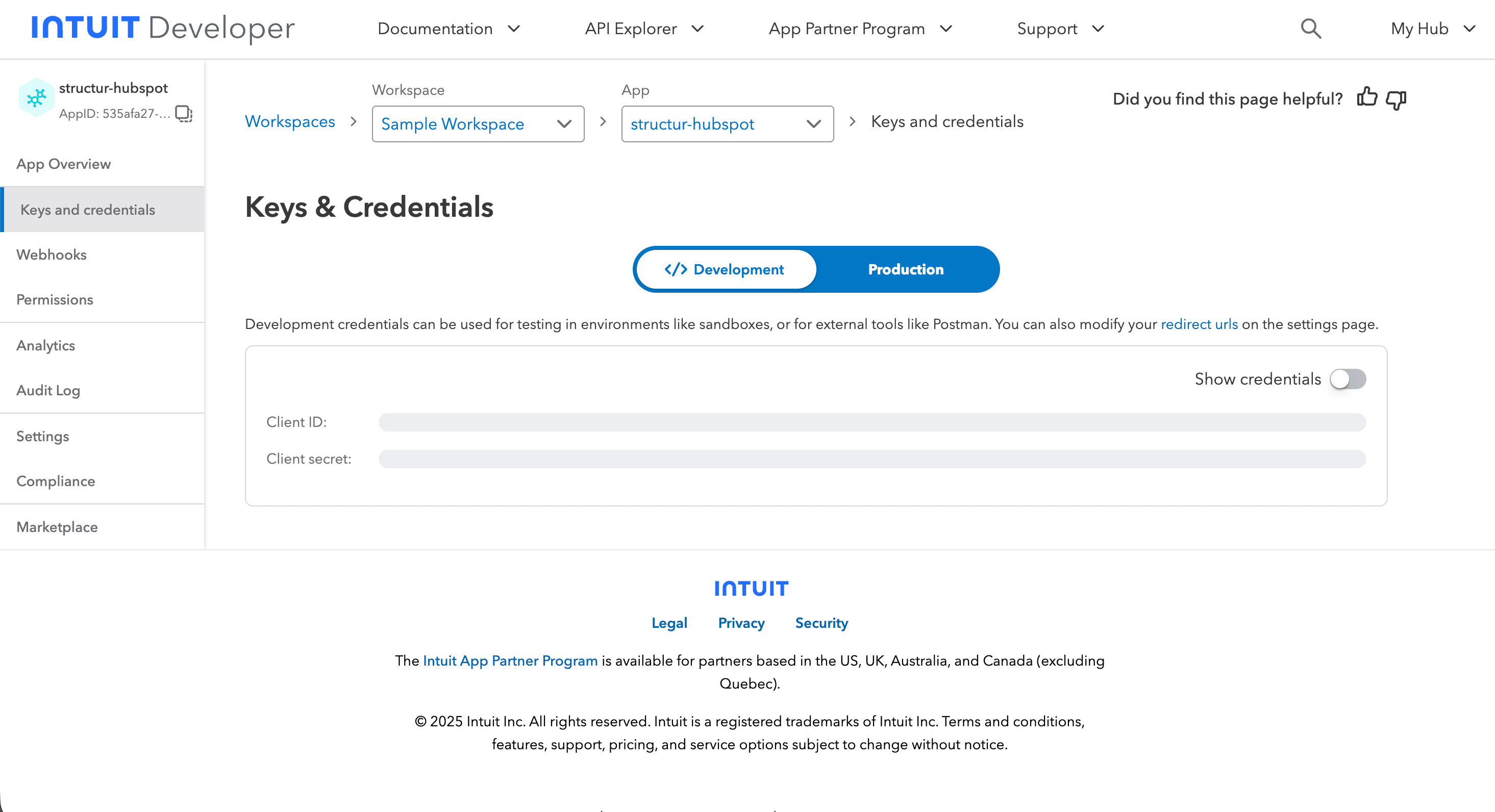
- Click Open app to access your app’s dashboard
- Click on the Keys & credentials section in the left navigation
- The page will default to showing your Development credentials
Note: Development credentials appear automatically when you create your app. No additional setup is required to access them.
4b. Copy Your Client ID
- Locate the Client ID field in the Development section
- Click the Copy button next to the Client ID
- You’ll need this for HubSpot configuration
Note: Your credentials are always accessible here in the Intuit Developer Portal whenever you need them.
4c. Copy Your Client Secret
- Locate the Client Secret field (below the Client ID)
- Click Show or the eye icon to reveal the secret
- Click the Copy button to copy the secret
Warning: Never share your Client Secret publicly, commit it to version control, or expose it in client-side code.
Step 5: Configure OAuth Redirect URI
Now you need to configure where Intuit will send users after they authorize your app.
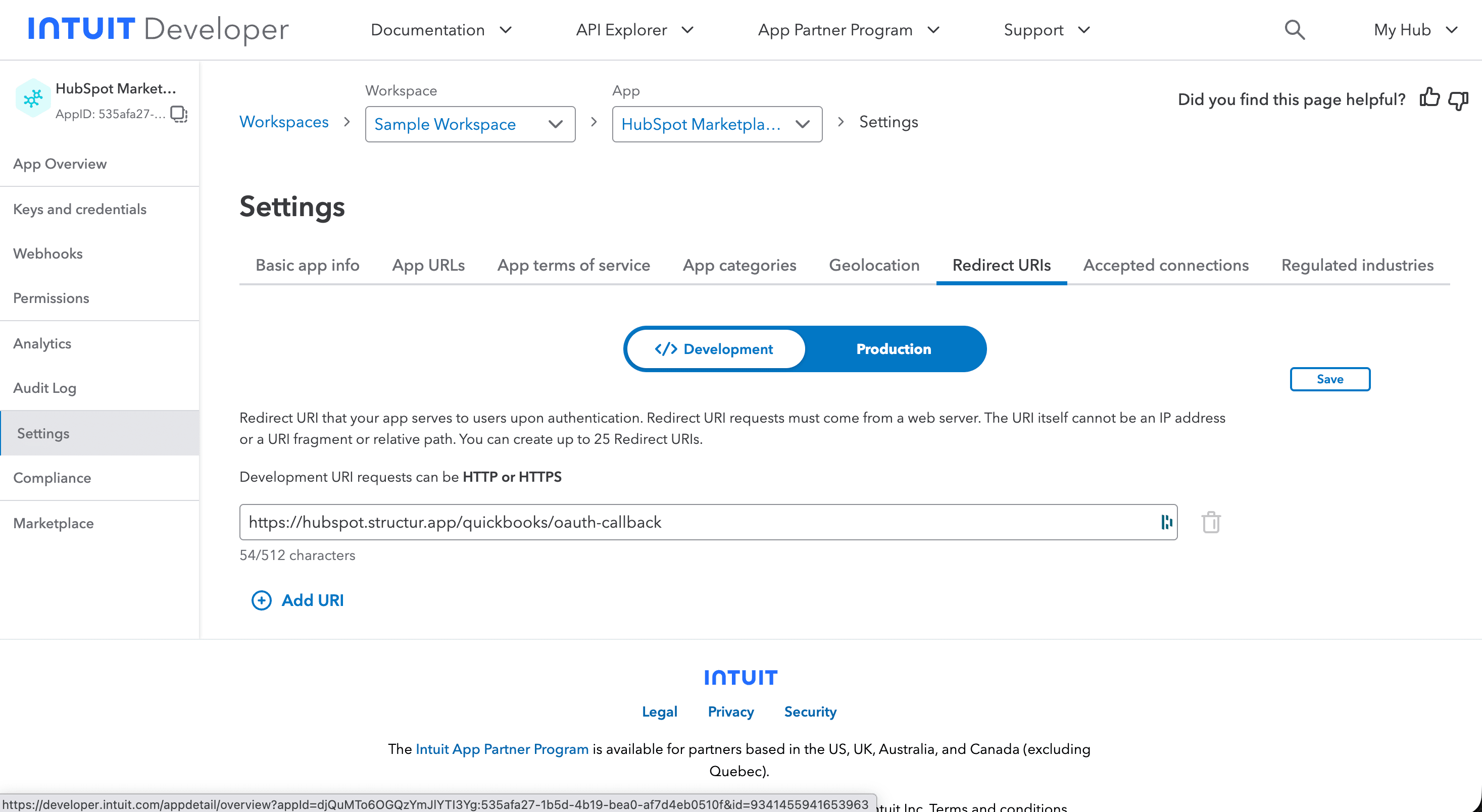
5a. Navigate to Settings
- In the left navigation menu, click Settings (located below Keys & credentials)
- Click on the Redirect URI tab
- You’ll see Development and Production sections
What is a redirect URI? After users authorize your app in QuickBooks, Intuit redirects them back to your application at this specific URL with an authorization code.
5b. Add the Development Redirect URI
- In the Development section, click Add URI button
- Enter the redirect URI exactly as shown:
https://hubspot.structur.app/quickbooks/oauth-callbackCritical: The redirect URI must match exactly (including
https://and no trailing slash). Any mismatch will cause OAuth authentication to fail. - Click Save
Next: When you’re ready to test the integration, follow the Configure QuickBooks in HubSpot guide.
Development vs Production
Your app currently has Development credentials:
- Use for: Testing with QuickBooks Sandbox companies
- Access: Automatically created when you made your app
- Data: Test data only, not real customer data
- Ready now: You can start testing immediately
When you’re ready to go live with real QuickBooks data, you’ll need Production credentials:
- Use for: Live integration with real QuickBooks companies
- Requires: App details questionnaire and legal documentation
- See: Production App Setup guide
Testing with Sandbox is optional: While we recommend testing with Sandbox first, you can skip sandbox testing and proceed directly to Production Setup if you prefer to work with real QuickBooks data immediately.
Next Steps
Now that your app is set up with development credentials:
- Configure QuickBooks in HubSpot - Enter your credentials in the HubSpot integration settings
- Understand Sandbox vs Production - Learn about the different environments
- Production Setup - When ready to go live with real data